Best Mouse for Video Editing: What Actually Matters
For video editing, horizontal scrolling, programmable controls, weight and polling matter more than huge DPI numbers. The best mouse is the one that removes friction from your timeline.
- Timeline
- Side scroll wheel
- Comfort
- Weight and grip
- Shortcuts
- Buttons and macros
- Mixed use
- Editing and gaming
Contains affiliate links: if you buy through them, Daykyri earns a commission at no extra cost to you.
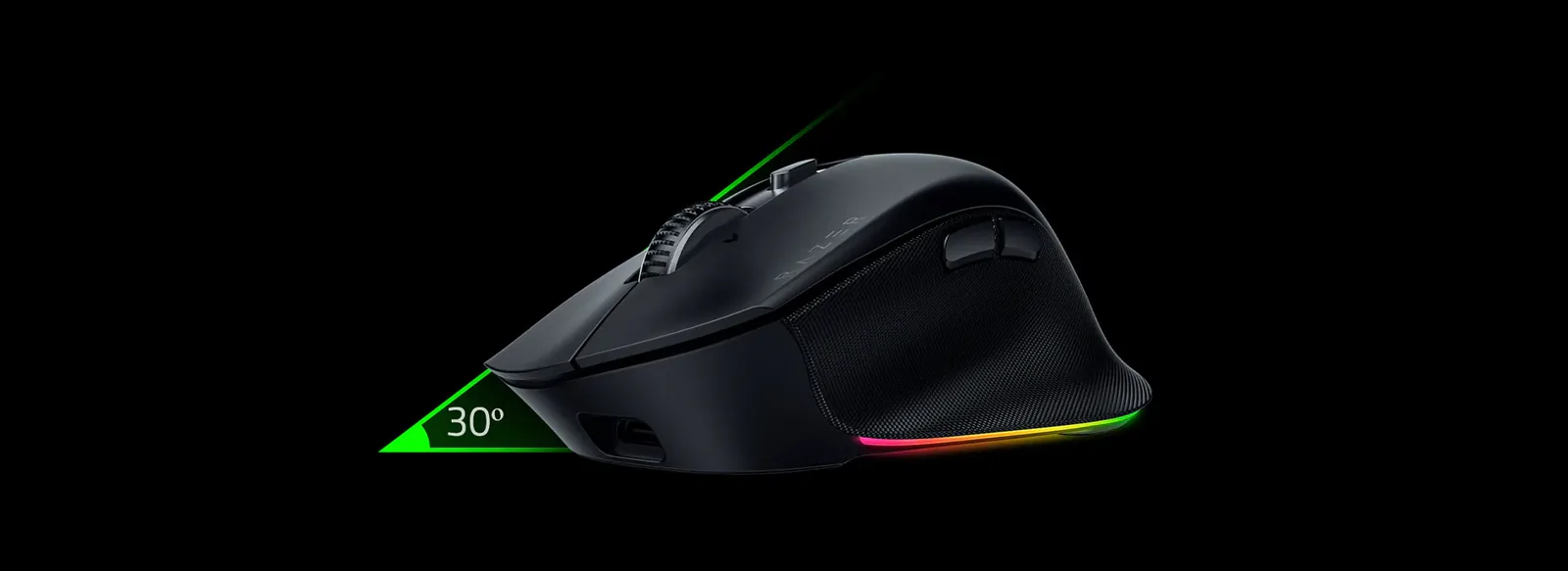
A good editing mouse can remove hundreds of tiny movements from a long session.
I would prioritize:
- horizontal scrolling;
- fast scrolling;
- programmable buttons;
- app-specific profiles;
- comfort;
- weight;
- polling rate;
- multi-device support.
30,000 DPI belongs much lower on the list.
The Logitech MX Master 4 is one of the clearest productivity references because it combines a horizontal thumb wheel, programmable controls and software built around workflow.
It also has two obvious trade-offs:
it is large and weighs 150 g.
Logitech also publishes a polling rate of:
125 Hz.
Some editors will not care.
Others absolutely will.
Quick comparison
| Mouse | Approx. weight | Polling | Best fit |
|---|---|---|---|
| Logitech MX Master 4 | 150 g | 125 Hz | Productivity and timelines |
| Keychron M6 | 78–86 g | Up to 8,000 Hz depending on version | Side wheel with lower weight |
| Razer Pro Click V2 | 110 g | Up to 1,000 Hz | Editing and gaming |
Editing is about removing friction
One hour in Premiere or Resolve involves constant repetition:
- timeline navigation;
- zooming;
- cutting;
- deleting;
- moving clips;
- play;
- pause;
- tool changes;
- panel navigation.
Saving half a second once does not matter.
Saving it hundreds of times becomes a workflow.
Logitech MX Master 4
Logitech specifies:
- up to 8,000 DPI;
- MagSpeed wheel;
- horizontal thumb wheel;
- 8 buttons;
- Logi Options+;
- Actions Ring;
- haptic feedback;
- pairing with up to three devices;
- up to 70 days of battery life;
- roughly 3 hours of use from a 1-minute charge;
- 150 g weight;
- 125 Hz polling.
For editing, the 8,000 DPI ceiling is one of the least interesting parts.
Search Amazon for Logitech MX Master 4
The horizontal thumb wheel
This is one of the strongest editing features.
Map it to horizontal timeline movement.
Thumb:
left ↔ right
Main wheel:
vertical scrolling, zoom or another control
You stop hunting for the bottom scrollbar every few seconds.
That small reduction in friction repeats all day.
MagSpeed
The main wheel can switch between:
- precise ratcheted movement;
- free-spin.
A fast flick can move through long:
- bins;
- lists;
- pages;
- timelines.
Then you return to precise control.
Actions Ring
MX Master 4 adds Actions Ring through Logi Options+.
It can place common tools around the cursor.
Possible editing actions include:
- cut;
- ripple delete;
- tool changes;
- export;
- panel commands.
Do not fill it with twenty shortcuts on day one.
Start with two or three actions you already repeat constantly.
Weight
MX Master 4 weighs:
150 g.
That is heavy compared with a modern gaming mouse.
Some people like the planted feel.
Others find it tiring.
If you use low sensitivity and move your whole arm, the difference becomes even more obvious.
Why some editors prefer something else
This is the strongest argument against the MX Master line.
Some editors find it:
- large;
- heavy;
- slow compared with a high-polling lightweight mouse.
That does not erase the benefits of the thumb wheel and software.
It describes a different hand and workflow.
If you come from a 60–80 g gaming mouse, the 150 g body may matter far more than the 8,000 DPI number.
125 Hz polling
Logitech publishes:
125 Hz
over both receiver and Bluetooth for MX Master 4.
That means the mouse reports its position roughly 125 times per second.
For editing, it can be perfectly usable.
If you are used to 1,000 Hz or more on a high-refresh monitor, the cursor may feel less immediate.
Does that matter for video editing?
Far less than it does in competitive FPS games.
You still use the mouse for hours.
If cursor response bothers you, it belongs in the buying decision.
Keychron M6
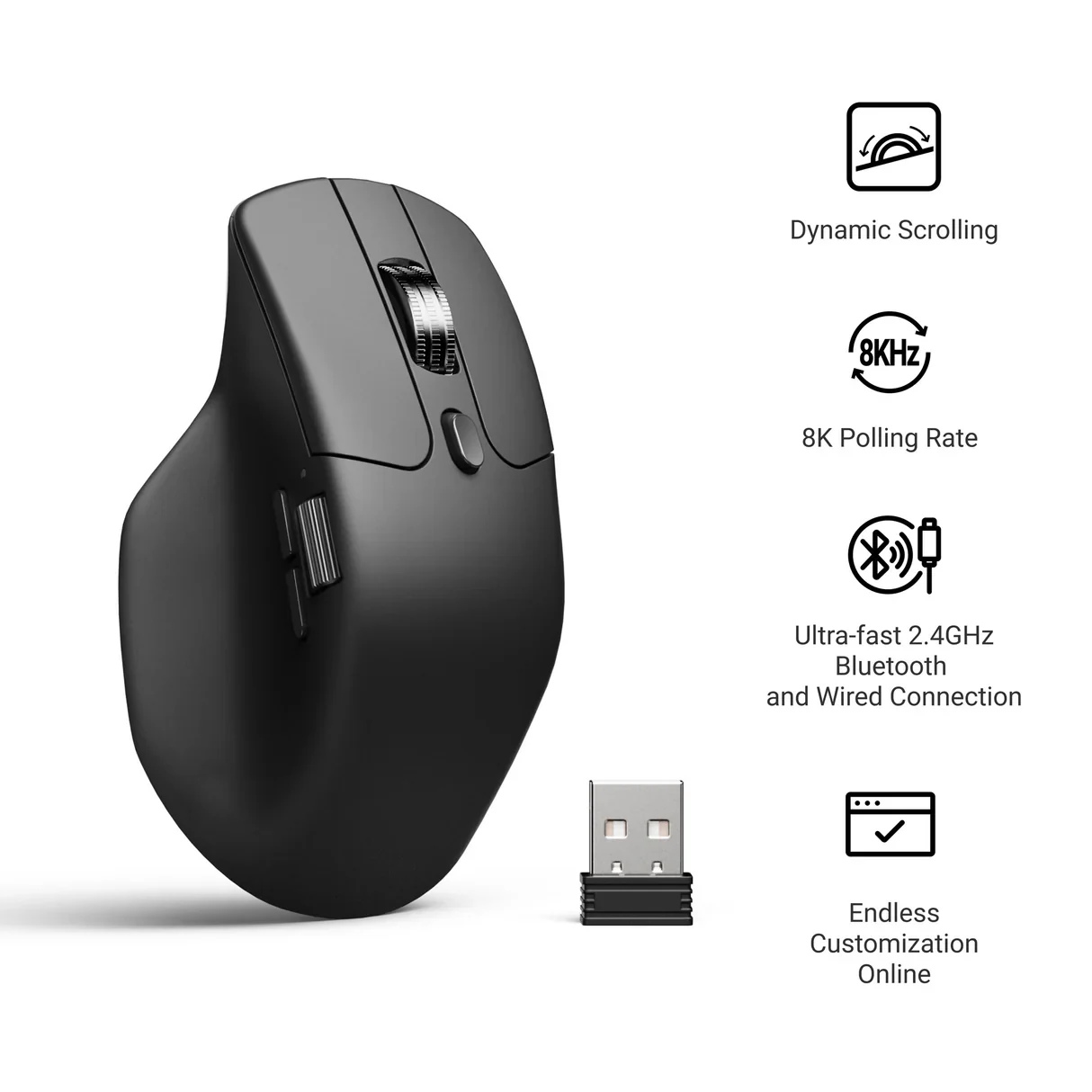
Keychron M6 mouse and receiver beside its connection and polling modes.
Keychron M6 follows a similar productivity idea:
- main wheel;
- dedicated horizontal side wheel;
- programmable controls;
- Bluetooth;
- 2.4 GHz;
- wired mode;
- high-resolution sensor options;
- high-polling variants;
- roughly 78–86 g depending on version.
The weight difference is huge.
Who should look at the M6?
If you want:
side wheel + productivity
but find MX Master:
- too heavy;
- too large;
- too expensive;
- too low in polling;
the M6 is an obvious alternative.
The side wheel still works for timelines
That is the main reason it belongs here.
You keep a dedicated horizontal control for:
- Premiere;
- Resolve;
- spreadsheets;
- wide panels;
- timelines.
It preserves a lot of the MX Master workflow with much less mass.
Razer Pro Click V2
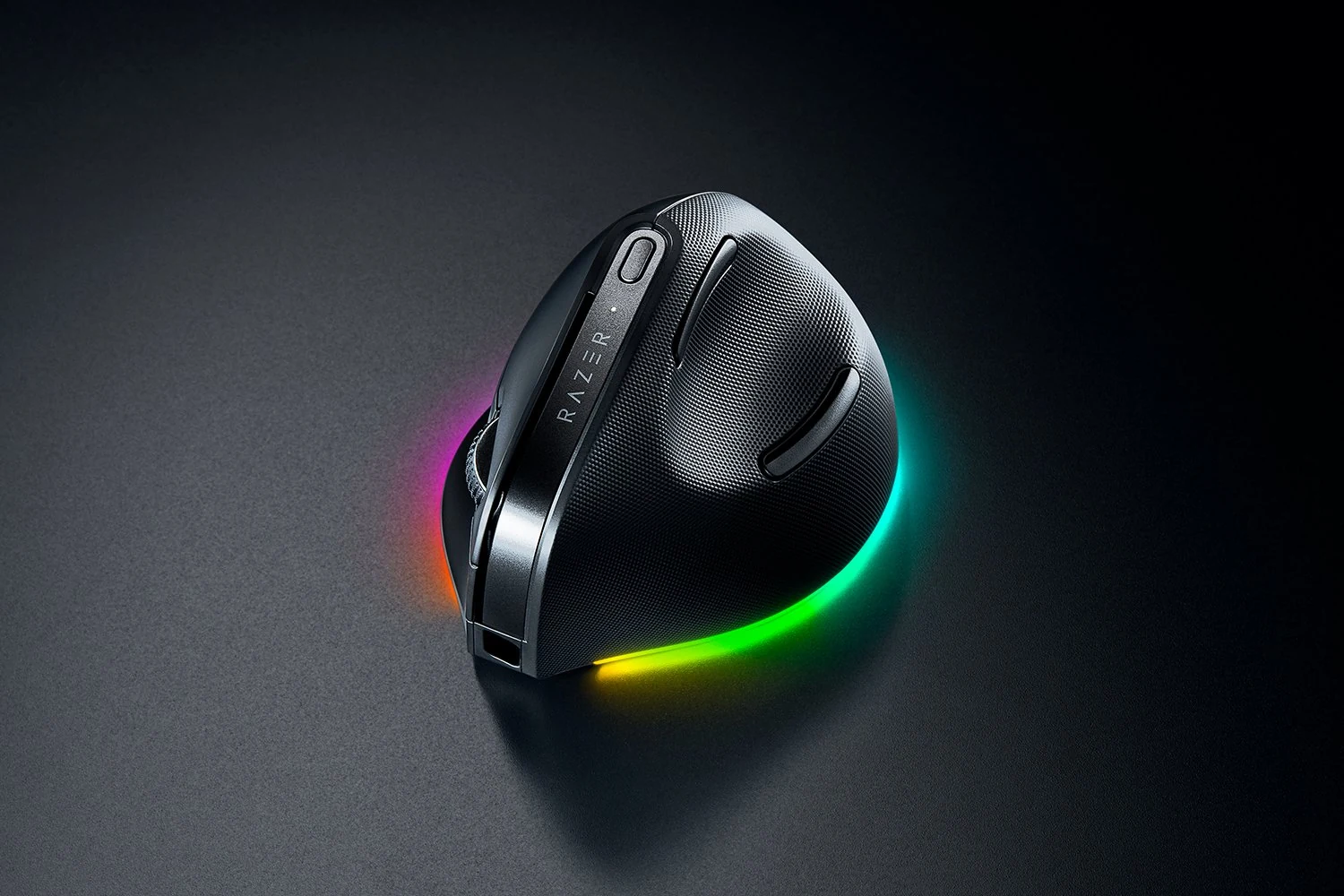
Black Razer Pro Click V2 mouse with lighting around its base.
Razer Pro Click V2 tries to sit between work and gaming.
It offers:
- up to 30,000 DPI;
- up to 1,000 Hz polling over wired/2.4 GHz;
- 9 programmable controls;
- multi-mode scroll wheel;
- horizontal tilt;
- multi-device connectivity;
- roughly 110 g weight.
Search Amazon for Razer Pro Click V2
Why include it?
If you want one mouse for:
Premiere during the day
and:
gaming at night
it can be a better compromise than MX Master.
You get higher polling.
Less weight.
Plenty of programmable controls.
What you lose
There is no dedicated horizontal thumb wheel.
Horizontal scrolling comes through wheel tilt.
It works.
For long timelines, I still prefer a separate thumb wheel.
How much DPI do editors need?
Far less than the box suggests.
8,000.
30,000.
Those are sensor limits.
They are not targets.
Find a sensitivity where you can:
- cross multiple displays efficiently;
- grab a keyframe;
- move an edit a few pixels;
- hit small controls without fighting the cursor.
That is the useful setting.
4K and ultrawide monitors
Higher DPI range gives you more flexibility across large desktop areas.
You may raise sensitivity to reduce physical movement.
That still does not mean editing at 30,000 DPI.
Button mapping
Do not assign shortcuts just because buttons exist.
Start with frequent actions.
Example:
Side button 1
Cut.
Side button 2
Ripple Delete.
Middle click
Play/Pause.
Horizontal wheel
Timeline navigation.
Actions Ring
Less frequent tools.
Use the setup for a week.
Keep what becomes automatic.
Change what does not.
App-specific profiles
A productivity mouse can behave differently in each application.
The same button can be:
Cut in Premiere.
Back in Chrome.
Something else in Resolve.
That matters more than maximum DPI for editing.
Is MX Master 3S still worth buying?
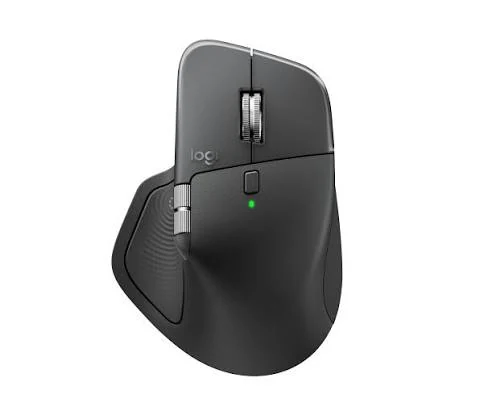
Logitech MX Master from the 3/3S generation. This picture shows the generation before MX Master 4.
Yes.
Especially at a good discount.
It still provides:
- MagSpeed;
- horizontal thumb wheel;
- 8K DPI;
- Logi Options+.
MX Master 4 adds:
- Actions Ring;
- haptics;
- design changes;
- updated connectivity.
If your 3S already works well, I would not rush to replace it.
Search Amazon for Logitech MX Master 3S
What about a gaming mouse?
For some editors, it may be the better tool.
A 60–80 g mouse with:
- 1,000 Hz or more;
- solid side buttons;
- macro software;
can feel much faster.
You lose the dedicated horizontal wheel.
You gain:
- lower weight;
- faster response;
- easier movement.
Pick the type of friction you want to remove.
Which one would I choose?
MX Master 4
For:
- timeline work;
- horizontal scrolling;
- app profiles;
- macros;
- productivity-first editing.
Keychron M6
For:
- a dedicated side wheel;
- much lower weight;
- higher polling options;
- lower cost.
Razer Pro Click V2
For one mouse covering:
- editing;
- office work;
- gaming.
The best mouse cannot fix a slow workflow
You can buy an MX Master 4 and still open a menu for every cut.
The mouse starts saving time when you give it specific jobs.
Configure three actions.
Use them.
Keep the ones that disappear into muscle memory.
Change the rest.
Frequently asked questions
What is the best mouse for video editing?
MX Master 4 is a strong productivity reference because of its horizontal wheel, MagSpeed and customization.
It is not automatically the best fit for every editor.
Do I need 30,000 DPI?
No.
Use a sensitivity that balances speed and precision.
Does horizontal scrolling help in Premiere and Resolve?
Yes.
It is particularly useful on long timelines and wide panels.
Does MX Master 4 have high polling?
No.
Logitech publishes 125 Hz.
Is it good for gaming?
It is fine for casual gaming.
Competitive players will usually prefer something lighter with a higher polling rate.
What is a lighter alternative?
Keychron M6 keeps the side wheel and weighs much less.
Best work/gaming crossover?
Razer Pro Click V2.
Is MX Master 3S still good?
Yes.
At a good price it remains a very capable editing mouse.
More gear and creator guides
Standing desk for streaming and editing
Chair for streaming and editing
Best video editing software for YouTube