Video Editing Storage: SSD, NVMe, HDD, DAS or NAS?
One drive does not need to perform every job. Separate fast working storage, archive capacity and backup, then size performance around the media bitrate.
- Working drive
- SSD / NVMe
- Cache
- NVMe
- Archive
- HDD / DAS / NAS
- Backup
- Separate copy
Contains affiliate links: if you buy through them, Daykyri earns a commission at no extra cost to you.
One drive does not have to perform every job.
Video editing usually combines at least three different needs:
- fast working storage;
- large archive storage;
- a safe second copy.
A simple architecture can look like:
SSD/NVMe → work
HDD/DAS/NAS → archive
second copy/offsite/cloud → backup
Then decide how much performance the media actually needs.
Quick answer
| Job | Good starting point |
|---|---|
| OS + applications | SSD/NVMe |
| Active projects | SSD/NVMe or fast NAS |
| Cache/scratch | NVMe |
| Archive | HDD, DAS or NAS |
| Backup | Separate second copy |
| Multiple editors | NAS + fast network |
Do you need NVMe for 4K?
Not automatically.
“4K” only describes resolution.
You still need to know:
- codec;
- bitrate;
- frame rate;
- camera count;
- proxies;
- effects;
- cache workflow.
Highly compressed 4K can require surprisingly little storage bandwidth.
Heavy ProRes, RAW or multicam can require much more.
Start with bitrate
Puget uses a useful rough guideline:
storage performance ≈ 4× media bitrate
with extra headroom for multicam.
First convert:
Mbps ÷ 8 = MB/s
100 Mbps media
100 ÷ 8 = 12.5 MB/s
Four times:
~50 MB/s
That is easy for a modern SATA SSD.
400 Mbps media
400 ÷ 8 = 50 MB/s
Four times:
~200 MB/s
Still well inside many SSD workflows.
800 Mbps media
800 ÷ 8 = 100 MB/s
Four times:
~400 MB/s
Now faster storage starts becoming more relevant.
Multicam multiplies the problem
Four simultaneous streams are not one stream.
If each stream needs:
100 MB/s
four streams can demand roughly:
400 MB/s
before other overhead and headroom.
This is where NVMe, RAID or faster network storage can become much more useful.
“4K” does not tell you capacity
OWC provides useful example data rates.
Approximately:
XAVC S / H.265 4K 10-bit
45 GB per hour
ProRes 422 HQ 4K
396 GB per hour
BRAW 6K 5:1
637 GB per hour
High-resolution video can therefore mean radically different storage requirements.
Ask:
Which codec?
before asking only:
Is it 4K?
Separate storage jobs
Puget recommends separating roles when budget and workflow justify it.
OS and applications
SSD or NVMe.
A practical starting point is:
500 GB or more.
Projects and media
SSD, NVMe or sufficiently fast NAS.
For video, 2 TB+ becomes much more comfortable than a small system drive.
The correct size depends on your codecs and project volume.
Cache and scratch
NVMe is especially useful here.
Editors and compositors can generate large amounts of:
- cache;
- previews;
- renders;
- optimized media;
- proxies.
A useful starting point is around:
500 GB or more
with heavier After Effects/Fusion workflows benefiting from more.
SATA SSD
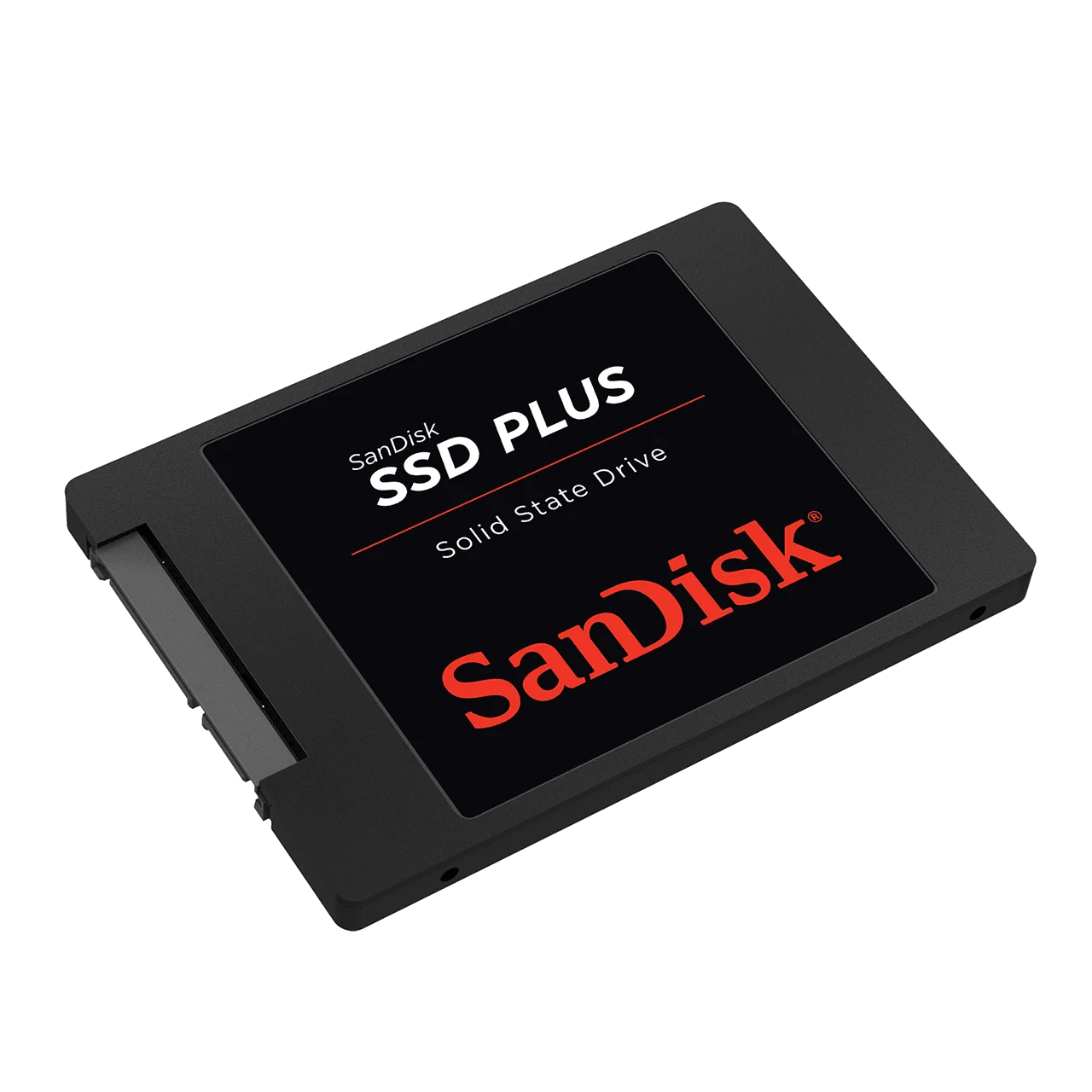
SanDisk SSD Plus as an example of the 2.5-inch SATA format; choose capacity for your project.
SATA SSD is much slower than modern high-end NVMe.
It is still fast enough for a huge amount of video work.
If your media requires:
50–200 MB/s
a drive capable of several hundred MB/s still has headroom.
That is why a 7,000 MB/s NVMe is not automatically required for 4K.
Search Amazon for SanDisk SSD Plus
NVMe
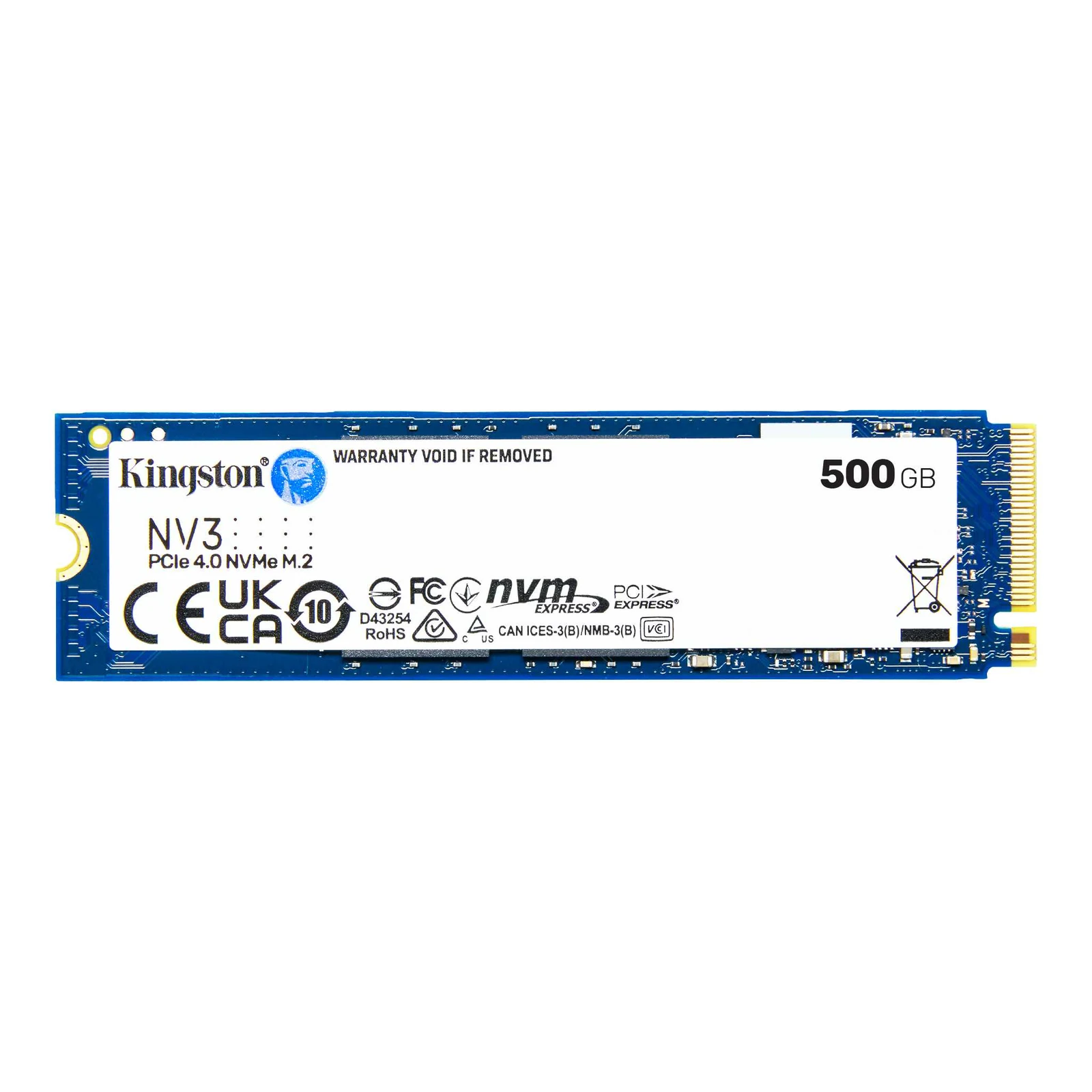
500 GB Kingston NV3 as an example of the M.2 NVMe format; the photo does not prescribe the capacity for your footage.
NVMe becomes particularly useful for:
- RAW;
- heavy multicam;
- 6K/8K;
- large cache workloads;
- very fast transfers.
It also makes moving huge projects around the workstation much faster.
Search Amazon for Kingston NV3
Portable SSD
Portable SSDs are convenient for:
- laptops;
- travel;
- moving projects between computers;
- delivering footage;
- editing away from the main workstation.
But the advertised speed depends on the port.
Samsung T9 example
Samsung advertises T9 performance up to roughly:
2,000 MB/s read
and:
1,950–2,000 MB/s write
depending on capacity and conditions.
It uses:
USB 3.2 Gen 2×2.
To approach those speeds you need:
- compatible drive;
- compatible cable;
- compatible host;
- UASP support.
USB4 does not automatically mean Gen 2×2
This catches buyers out.
Some USB4 hosts do not implement USB 3.2 Gen 2×2.
A drive advertised near:
2,000 MB/s
may then operate closer to the:
1,000 MB/s
class of USB 3.2 Gen 2.
Check the computer protocol before paying for headline SSD speed.
Is 1,000 MB/s slow?
For many editing projects:
not at all.
Return to the media bitrate.
If the workflow needs 200 MB/s, a real 900–1,000 MB/s drive still has plenty of room.
The problem is paying for 2,000 MB/s your computer cannot use.
HDD
Hard drives still make excellent sense for:
- archive;
- backups;
- finished projects;
- large libraries;
- inexpensive capacity.
Direct editing performance depends on:
- codec;
- drive;
- RAID;
- number of streams.
Give HDD the right job.
DAS
DAS means Direct Attached Storage.
It can provide large local storage through:
- USB;
- Thunderbolt;
- multiple drives;
- RAID.
It is useful for a creator with one main workstation who wants a lot of storage without building network infrastructure.
OWC ThunderBay 4 example
ThunderBay 4 provides:
- four SATA bays;
- Thunderbolt 3 at 40 Gb/s;
- configurations up to 96 TB;
- RAID 0/1/4/5/10/JBOD support.
OWC publishes figures up to around:
1,527 MB/s
with SSD RAID 0.
It also shows around:
770 MB/s
in one HDD RAID 5 test.
That illustrates the role of DAS well:
large, fast storage directly beside one workstation.
Search Amazon for OWC ThunderBay 4
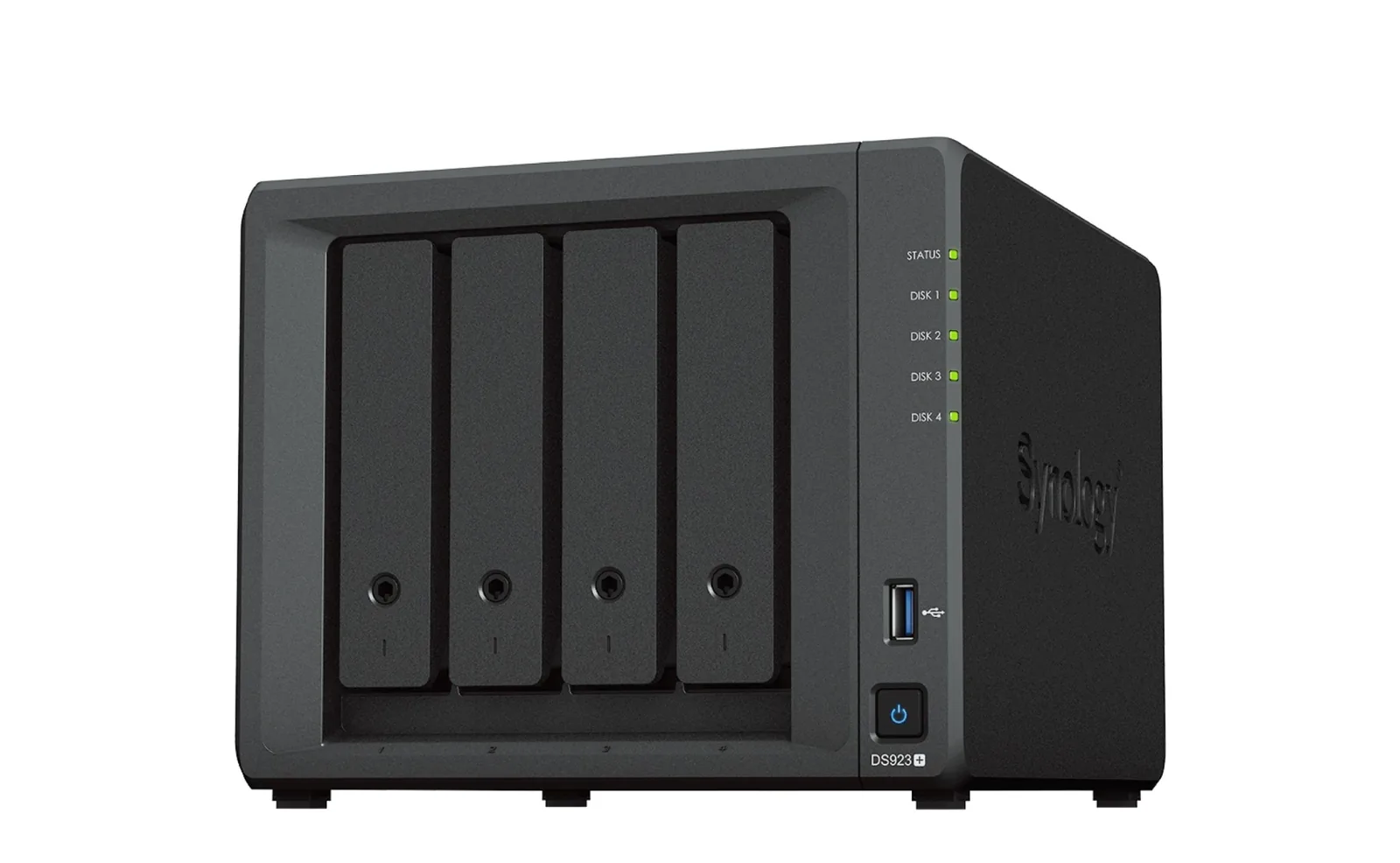
NAS
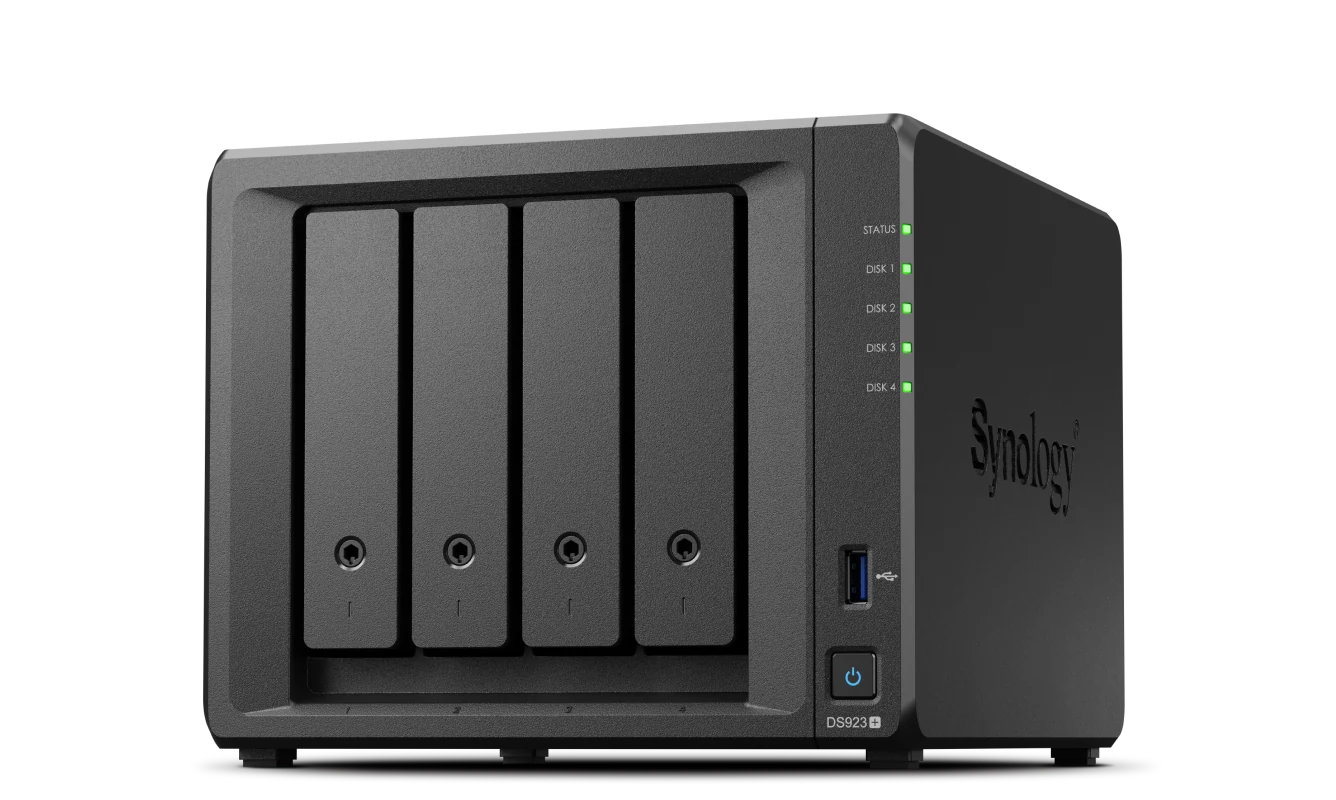
Synology DS923+ as an example of a four-bay NAS. Editing performance also depends on the drives and network.
NAS puts storage on the network.
That brings:
- centralized media;
- access from multiple computers;
- shared projects;
- large archives;
- easier collaboration.
Now the network becomes part of the storage system.
Search Amazon for Synology DS923+
1 Gigabit Ethernet
Gigabit Ethernet has a practical maximum near:
120 MB/s
under good conditions.
That can be enough for:
- H.264;
- H.265;
- proxies;
- some ProRes work.
Heavy multicam, RAW and multiple users can overwhelm it.
2.5GbE
2.5GbE provides much more room.
A 2026 TechRadar test of a UGREEN NAS measured roughly:
273 MB/s
over 2.5GbE.
The reviewer was able to work with an approximately 500 GB 4K project.
That is one test system, not a universal guarantee.
10GbE
10GbE opens much more headroom for:
- multiple streams;
- RAW;
- several editors;
- large projects.
But every part of the path needs to support it:
- NAS;
- disks;
- switch;
- network adapter;
- cable;
- workstation.
Does NAS mean slow editing?
No.
Performance depends on the complete system.
A NAS can be slow.
A properly designed NAS and network can also support direct high-resolution editing.
Local editing or NAS?
Local NVMe
Advantages:
- very low latency;
- high throughput;
- simple setup.
Disadvantage:
fills quickly.
NAS
Advantages:
- centralized capacity;
- multi-computer access;
- easier long-term organization.
Disadvantage:
the network becomes part of the workflow.
Hybrid workflow
A common approach is:
originals on NAS → active project on NVMe → finished project back to NAS
Another:
media on fast NAS → cache/proxies on local NVMe
The right structure depends on your volume and team.
Proxies
Proxies can dramatically reduce storage-performance requirements.
Keep:
- heavy originals on NAS/HDD;
- lightweight proxies on local SSD/NVMe.
Edit with proxies.
Export from originals.
That can make very large projects practical without requiring extreme storage speed at every stage.
RAID is not backup
RAID can protect availability when a drive fails, depending on the RAID level.
It does not automatically protect against:
- accidental deletion;
- overwritten files;
- corruption;
- ransomware;
- theft;
- fire;
- total device failure.
Deleting a file can propagate perfectly across a RAID.
The 3-2-1 rule
CISA continues to recommend:
3 copies
2 types/media
1 copy offsite
Example:
Copy 1
Active project on SSD/NVMe.
Copy 2
NAS or local HDD.
Copy 3
Cloud, another building or an offline drive stored elsewhere.
Now you have a real backup strategy.
A simple storage setup for one creator
Basic
Internal NVMe
Active project + cache.
Large external HDD
Archive.
Cloud or second HDD
Backup.
Intermediate
NVMe
Project and cache.
Large DAS
Fast archive.
Separate offsite copy
Backup.
Advanced
Local NVMe
Cache/proxies.
10GbE NAS
Media and projects.
Second NAS/offsite/cloud copy
Actual backup.
How much capacity do you need?
Calculate production volume.
If one project creates:
100 GB
and you make:
8 per month
that is:
800 GB per month.
One year:
9.6 TB
before counting:
- cache;
- proxies;
- exports;
- versions;
- backup copies.
A 2 TB drive stops looking enormous very quickly.
Common mistakes
Buying NVMe based only on maximum speed
Calculate your media requirements first.
Buying a 2,000 MB/s portable SSD without checking the host
Your computer may only support half that throughput.
Treating the working SSD as the archive
The project is not safe just because editing is finished.
Buying NAS and leaving the workflow on slow networking
The network can become the bottleneck.
Calling RAID a backup
RAID and backup solve different problems.
What would I buy first?
For one computer:
- fast SSD/NVMe for active work;
- large HDD for archive;
- another copy of anything important.
DAS, NAS, 10GbE and larger RAID systems make more sense as the volume and number of machines grow.
Frequently asked questions
Do I need NVMe for 4K editing?
Not always.
Codec, bitrate, multicam and cache matter more than resolution alone.
How much storage speed do I need?
Convert Mbps to MB/s by dividing by 8, then leave headroom. Puget uses roughly 4× media bitrate as a useful guideline.
Can SATA SSD edit 4K?
Yes, for many codecs.
Why does my 2,000 MB/s portable SSD only reach around 1,000?
Your host may not support USB 3.2 Gen 2×2.
Can you edit directly from NAS?
Yes, when the storage and network provide enough throughput.
Is 1GbE enough?
It can be for lighter codecs and proxy workflows. Its practical ceiling is around 120 MB/s.
Do I need 10GbE?
It becomes more useful for heavy codecs, multicam, RAW and multiple editors.
Is RAID a backup?
No.
What does 3-2-1 mean?
Three copies, two storage types/media and one copy offsite.
More gear and creator guides
Best video editing software for YouTube
Premiere Pro export settings for YouTube
DaVinci Resolve export settings for YouTube
Sources
Puget Systems — Understanding Storage for Video Editing
Synology — storage for video editors and creators