How to Go Live on YouTube From Your Phone: Requirements and Practice Mode
To go live on YouTube from your phone you need 50 subscribers, a verified channel and live streaming turned on. Under 1,000 subscribers your audience may be limited, and practice mode lets you rehearse privately before going public.
- Subscribers
- 50
- No limits
- 1,000
- Activation
- UP TO 24 H
- Rehearsal
- PRACTICE MODE
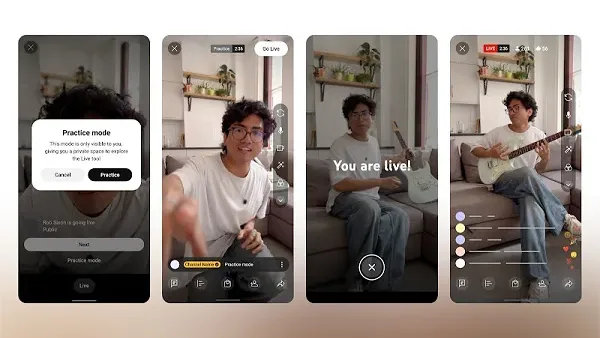
To live stream on YouTube from your phone you need at least 50 subscribers, a verified channel, no live streaming restrictions in the past 90 days and live streaming turned on, which can take up to 24 hours to activate the first time. Under 1,000 subscribers YouTube may limit how many people see your stream, and practice mode lets you rehearse privately and go public with one tap when you’re ready. YouTube Help
Requirements to go live from your phone
| Requirement | Details |
|---|---|
| Subscribers | At least 50 |
| Channel | Verified |
| History | No live streaming restrictions in the past 90 days |
| Live streaming | Turned on (up to 24 hours the first time) |
| Phone | Android 8.0 or iOS 8 and up, per YouTube Help |
How to start a live stream in the YouTube app
- Open the YouTube app and tap Create, then Go live.
- Tap Edit to set visibility, scheduling, age restriction and monetization.
- Tap Go live.
- To end, tap Finish. You’ll see a recap with stats and the stream is saved to your channel; from that recap you can save a Short of the best moment.
If you scheduled it, go to Create, Go live and the calendar, pick the stream and tap Go live. YouTube Help
How to rehearse with practice mode
Practice mode is a private room inside the app to test your stream with no audience: framing, lighting, audio, chat, polls, stickers and green screen. When everything looks right, you go public from there without setting anything up again. YouTube is rolling it out gradually and it only exists for mobile live streams. YouTube Help Social Media Today
- Tap Create, then Go live.
- Below the Next button, select Practice mode.
- Test whatever you need; to leave without streaming, tap the X.
- When you’re ready, tap Go live in the top right.
Tip: use practice mode as a sound check too. Talk at the real distance from the phone and listen back before anyone joins; on a phone stream, audio shows its flaws before the picture does, and a microphone makes more difference than the camera.
If you have fewer than 1,000 subscribers
Between 50 and 1,000 subscribers, YouTube may limit the audience of your mobile live streams and saves the stream as private by default. Once you pass 1,000 the limit goes away, though it can take several weeks, and if you drop below 1,000 it comes back. You only lose mobile streaming if you fall below 50. YouTube Help
To stream without those limits from day one, use a computer with software like OBS: see the best OBS settings for streaming.
Frequently asked questions
How many subscribers do you need to go live on YouTube from your phone?
50, with a verified channel and live streaming turned on.
Can you test a YouTube live stream without anyone watching?
Yes, with practice mode in the app: it’s private, and you can go public from there with one tap.
Why is nobody seeing my mobile live stream?
Under 1,000 subscribers, YouTube may limit the audience of mobile live streams.
More on content creation
Sources
YouTube Help — Create a live stream on mobile
Social Media Today — YouTube adds practice mode for vertical live streams
Last verified: October 10, 2026.