How to Remove Background Noise From Audio for Free
There are three moments to fix noise: after recording, while recording, or by editing the file yourself. Adobe Podcast, NVIDIA Broadcast and Audacity each cover one of those cases for free.
- Already recorded
- ADOBE PODCAST
- Live
- NVIDIA BROADCAST
- Manual control
- AUDACITY 4
- Adobe free limit
- 1 HR PER DAY
If the audio is already recorded, try Adobe Podcast Enhance Speech. If you want to clean your microphone live, use NVIDIA Broadcast. If you prefer to work on the file locally with manual control, use Audacity 4. The right tool depends on which of those three problems you have.
Quick answer
| Situation | Tool |
|---|---|
| Audio already recorded | Adobe Podcast Enhance Speech |
| Clean the mic while recording or streaming | NVIDIA Broadcast |
| Manual offline editing | Audacity 4 |
Adobe Podcast: fix a voice after recording
Enhance Speech is designed for recorded dialogue: you upload the file, Adobe processes it and you download the result. The free tier allows files up to 500 MB and 30 minutes, with up to one hour of processing per day. Adobe Podcast · plans and limits
It is handy when a voice has noise or reverb and you want a quick cleanup before opening an editor. The limit is clear: if the voice is buried under music, clipping or strong wind, part of the original information is already gone, and no tool fully brings it back.
NVIDIA Broadcast: clean up while you talk
NVIDIA Broadcast works in real time, processing the microphone while you record, call or stream, with noise and echo removal plus other voice and camera tools. The condition is hardware: NVIDIA’s FAQ starts with compatible GPUs such as the GeForce RTX 2060, Quadro RTX 3000 or Titan RTX and later models. NVIDIA
If you already have that hardware, it keeps noise out of OBS, Discord or your recording app. For the rest of your stream setup, see the best OBS settings for gaming.
Audacity 4: work on the file yourself
Audacity is free, open source and runs on Windows, macOS and Linux. You work on the recording locally with its effects instead of handing it to an automatic process; it takes longer and lets you make decisions an automatic cleanup can get wrong. It fits best when cleanup goes together with cuts, levels and other adjustments. Audacity
Which one to use
Start by identifying the problem. To hear quickly how much a recording can improve, Adobe Podcast; if noise gets into your streams and you have a compatible RTX card, NVIDIA Broadcast; if you would rather not upload the file and want control, Audacity.
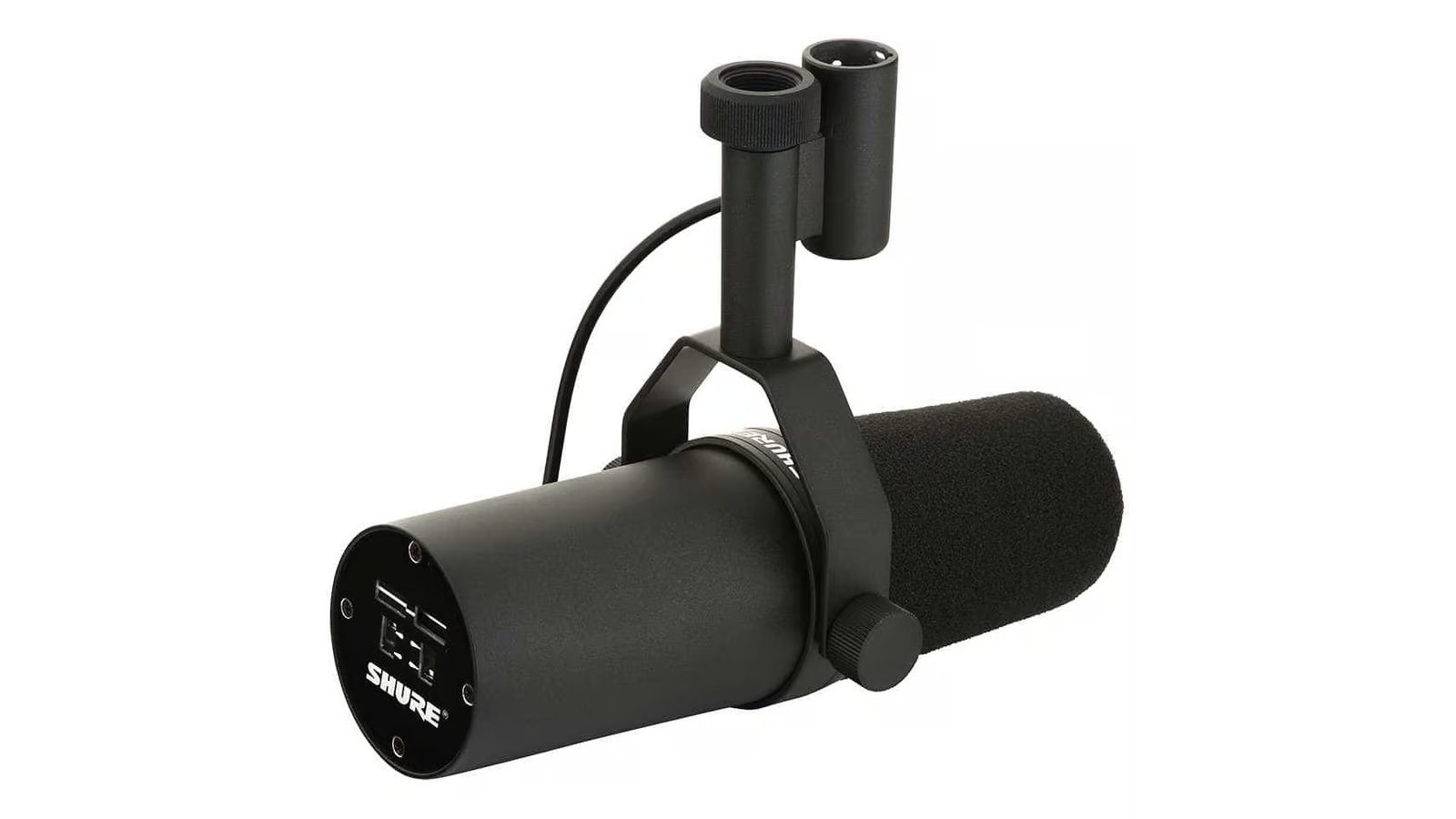
The fourth option usually gives the best result: fix the noise before recording. Move the microphone closer, lower the gain if you can and switch off the noise source, because a clean signal needs less repair later. If you need a mic, start with our streaming microphone guide.
Sources
Adobe Podcast — Enhance Speech
Adobe Podcast — plans and limits
Last verified: October 6, 2026.